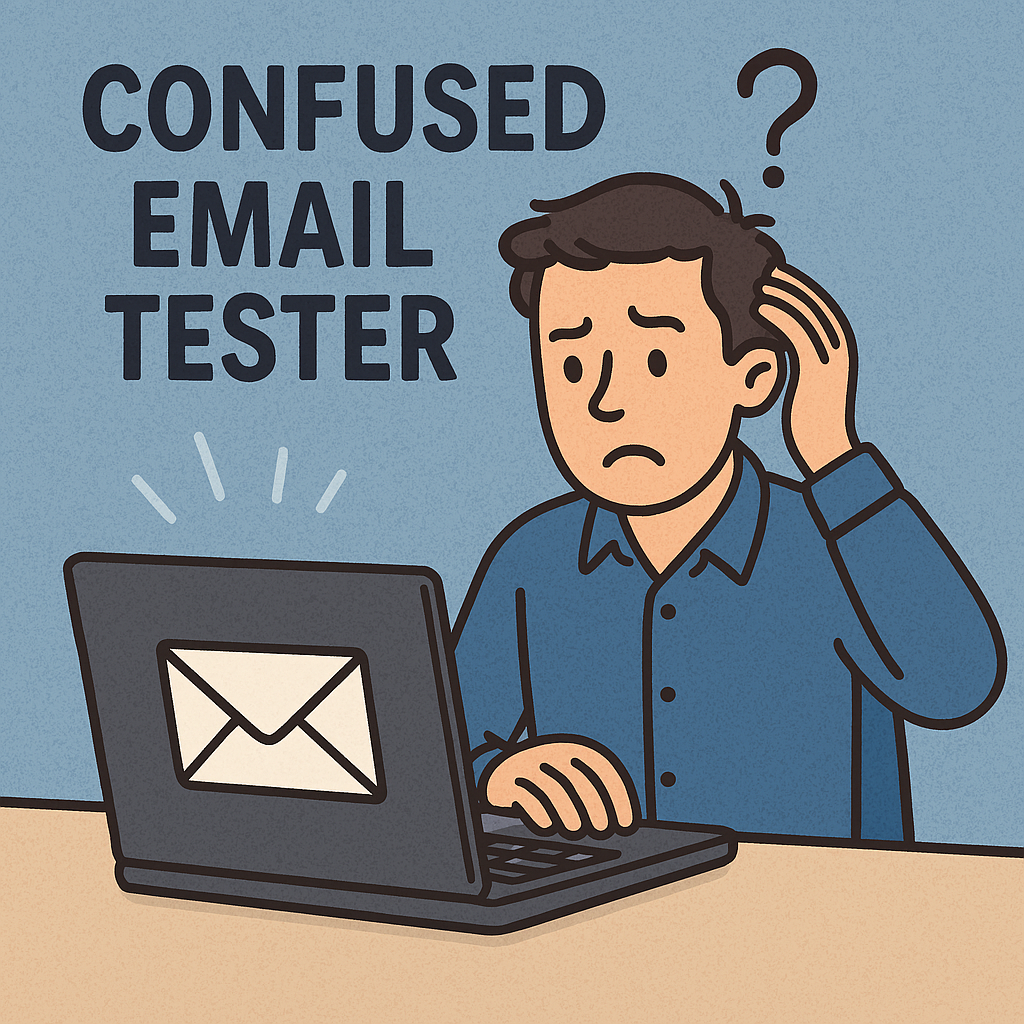
If you work with Salesforce Marketing Cloud (SFMC) long enough, you eventually run into the same irritating moment: you hit Send Test, wait for the familiar ping in your inbox… and nothing shows up. No bounce message, no error, just silence. So annoying. It’s one of those small but maddening issues that can derail an entire build, especially when you’re trying to get a campaign out the door.
The good news is that missing test sends usually come down to a handful of predictable causes. The challenge is that Marketing Cloud doesn’t always tell you what went wrong. Over the years, I’ve built a simple checklist that helps diagnose the issue quickly — and it’s saved me more than a few headaches.
Below is a practical, real‑world guide you can follow the next time your Marketing Cloud test email disappears.
Troubleshooting Checklist: Marketing Cloud Test Sends Not Received
1. Check the subscriber status
Before anything else, confirm the test email address is actually usable.
- Is the address in All Subscribers?
- Is it marked as Unsubscribed, Held, or Bounced?
- If you’re testing from a Data Extension, is the email actually present in that DE? We’ve all been there…
Marketing Cloud will silently skip addresses that violate compliance rules.
2. Review your Send Classification
This is one of the most common culprits.
- Are you using the correct IP and sending domain?
- Has your organisation recently updated SPF, DKIM, or DNS records?
- Is the classification tied to an inactive or misconfigured domain?
A small authentication change can block test sends without warning.
3. Validate your Sender Profile
A misconfigured sender profile can stop a test send before it even leaves the platform.
- Is the “From” address authenticated?
- Has the domain been verified in Marketing Cloud?
- Is your reply‑to address allowed by your organisation?
4. Run Content Detective
While it won’t always block a send, it can reveal issues that trigger filtering:
- Spam‑like phrases
- Broken links
- HTML errors
These can cause corporate filters to quarantine your test email.
5. Check your corporate email filters
This is a big one. Many companies aggressively filter test sends because they resemble bulk mail. This is happening more and more, particularly with Apple Mail.
- Try sending to a personal email (Gmail, Outlook.com).
- If it arrives there, your internal filters are the issue.
6. Verify your send context
- Are you using Preview & Test with complete subscriber data?
- Is any AMPscript failing because a field is missing?
- Are you testing from the correct environment (Email Studio vs. Content Builder)?
7. Try a full send to a small test Data Extension
Sometimes a real send behaves differently from a test send.
A tiny DE with your own email can reveal issues the test tool hides.
Summary
When Marketing Cloud test sends don’t arrive, it’s rarely random. It’s usually a subscriber status, a domain issue, a filter, or a missing field. Working through a structured checklist saves time and gives you a clear path to diagnosing the problem without guesswork. The next time your inbox stays quiet, run through these steps — chances are the fix is simpler than it seems.
Just don’t panic.

Leave a Reply