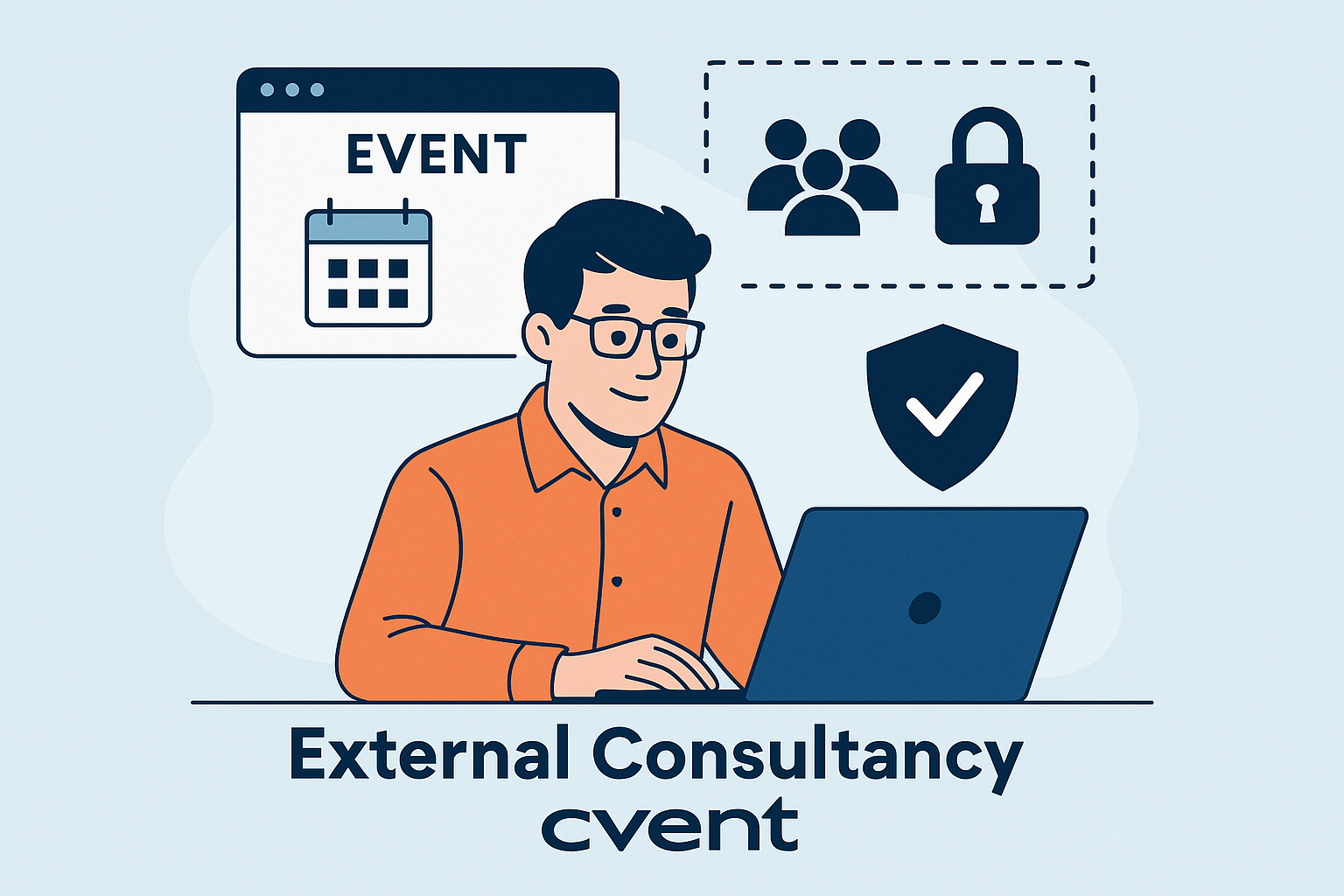


Bringing in an external agency or freelance event manager can be a smart way to scale your event operations—especially when internal bandwidth is tight. But if you’re using Cvent, granting access to outside partners requires careful configuration. You want them to manage one event, not your entire account. And you definitely don’t want them seeing or exporting your organisation’s full Contact database.
The good news is that Cvent provides the tools to do this securely. The challenge is knowing which combination of permissions, roles, and access settings to use.
In this guide, I’ll walk you through:
- How to set up an external consultancy in your Cvent account
- How to restrict their access to a single event
- How to prevent them from viewing your organisation‑wide Contacts
- How to ensure they can only access the contacts they upload for their event
This is a practical, step‑by‑step approach based on real‑world Cvent administration.
Why You Should Never Give Consultants Full User Access
Before diving into the setup, it’s worth stating the obvious: never add external partners as full administrators. Cvent’s default admin roles provide broad visibility across:
- All events
- All reports
- All contacts
- All planners and users
- All templates and libraries
Even if you trust your consultants, this level of access is unnecessary and risky. Instead, you’ll use a combination of:
- Custom User Roles
- Event‑level Access
- Contact Access Restrictions
This ensures your consultants can do their job—without compromising data governance or GDPR compliance.
Step 1: Create a Dedicated User Role for External Consultants
Start by creating a custom role that limits what consultants can see and do.
How to create the role:
- Go to Admin > Users > Roles
- Select Create Role
- Name it something clear like External Event Manager
- Start with a low‑permission template (e.g., Planner or Read‑Only)
- Manually enable only the permissions they need
Recommended permissions to enable:
Event‑Level Permissions
- View Event
- Edit Event
- Manage Sessions
- Manage Speakers
- Manage Registration
- Manage Emails
- Run Reports (event‑level only)
Do NOT enable:
- Access to all events
- Access to all contacts
- Cross‑event reporting
- Account‑level settings
- Template libraries (unless required)
This role becomes the foundation for safe access.
Step 2: Add the Consultant as a User in Your Account
Next, you’ll add the consultant as a user—but with the restricted role you just created.
Steps:
- Go to Admin > Users > Add User
- Enter their details
- Assign the External Event Manager role
- Leave “Access to All Events” unchecked
- Save the user
At this point, they technically exist in your account, but they can’t see anything yet.
Step 3: Grant Access to Only the Event They Will Manage
Now you’ll give them access to the specific event.
Steps:
- Open the event
- Go to Event > General > Event Access
- Select Add User
- Choose the consultant
- Assign them the External Event Manager role for this event
- Save
This is the key step that ensures they can only see this event and nothing else.
Step 4: Restrict Contact Visibility to Event‑Level Contacts Only
By default, Cvent users can often see the full Contact database unless you explicitly restrict it. To prevent consultants from accessing your organisation‑wide Contacts, you need to adjust their role permissions.
In the External Event Manager role, ensure these are disabled:
- Access All Contacts
- Edit All Contacts
- View All Contacts
- Run Cross‑Event Contact Reports
Then, enable only:
- Manage Contacts (Event‑Level Only)
- Upload Contacts to Assigned Events
This ensures they can:
- Upload contacts for their event
- View only the contacts they uploaded
- Manage those contacts within the event
But they cannot:
- Browse your full CRM
- Export your organisation’s entire contact list
- Access contacts from other events
This is essential for GDPR compliance and internal data governance.
Step 5: Ensure Consultants Upload Their Own Contact Lists
To keep your main Contact database clean and secure, the consultants should upload their own invitee lists directly into the event.
How they do this:
- Open the event
- Go to Attendees > Attendee List
- Select Upload Contacts
- Import their CSV
- Map fields
- Complete the upload
These contacts will now exist only within the event, not in your global Contact list.
Important note:
If your organisation uses Cvent Address Book, ensure the consultant’s role does not allow adding contacts to the Address Book. This prevents accidental cross‑account visibility.
Step 6: Test Their Access Before They Start Work
Before handing over the event, always test the setup.
How to test:
- Create a test user with the same role
- Assign them to the same event
- Log in as the test user
- Confirm they can only see:
- The single event
- The event‑level contacts
- The event‑level reports
- Confirm they cannot see:
- Other events
- Global contacts
- Account‑level settings
- Cross‑event reports
This step avoids surprises later.
Step 7: Remove Access When the Project Ends
Once the consultancy has delivered the event, remove their access.
Steps:
- Remove them from the event
- Deactivate their user account
- Archive any consultant‑uploaded assets if needed
This keeps your account clean and secure.
Final Thoughts
Cvent is powerful, but with great power comes the need for careful permission management. External consultants can be incredibly valuable partners—but only if you give them the right level of access.
By creating a custom role, restricting event visibility, and locking down contact access, you can confidently let consultants manage events on your behalf without exposing your entire Cvent ecosystem.
This approach protects:
- Your data
- Your attendees
- Your internal processes
- Your compliance obligations
And it ensures your consultants have exactly what they need—no more, no less.
Oh, and a final note. Cvent do allow you to give third parties access to your instance of Cvent. But it’s always best to check with your Cvent salesperson.

Leave a Reply